 Airpods & Earbuds (Unboxed)
  Camera & Lenses (Unboxed)
  Headphones (Unboxed)
  Laptops (Unboxed)
  MacBooks (Unboxed)
  Mobile Accessories (Unboxed)
  Monitors (Unboxed)
  Wearables (Unboxed)
  Laptops (Grade A)
  Monitors (Grade A)
  Smartphone (Grade A)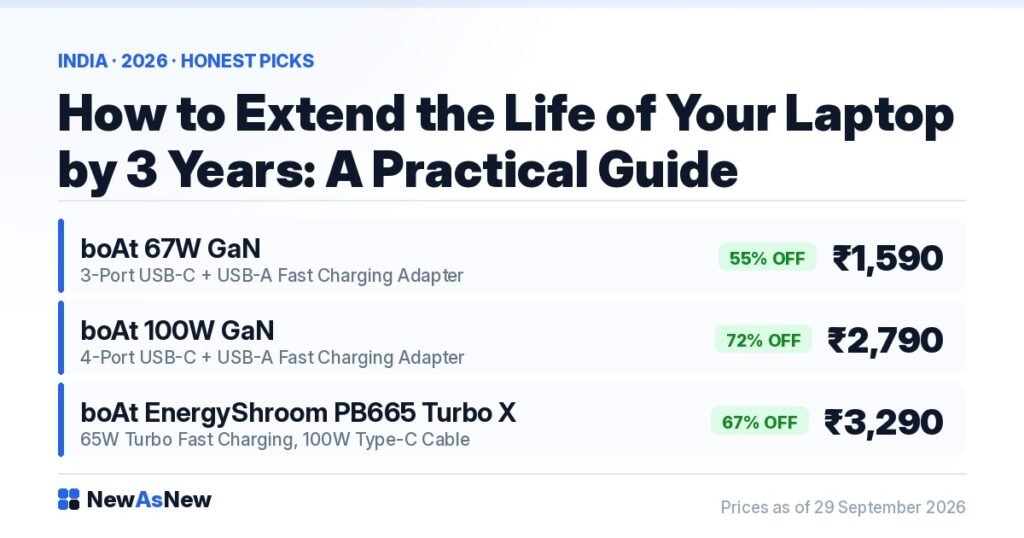
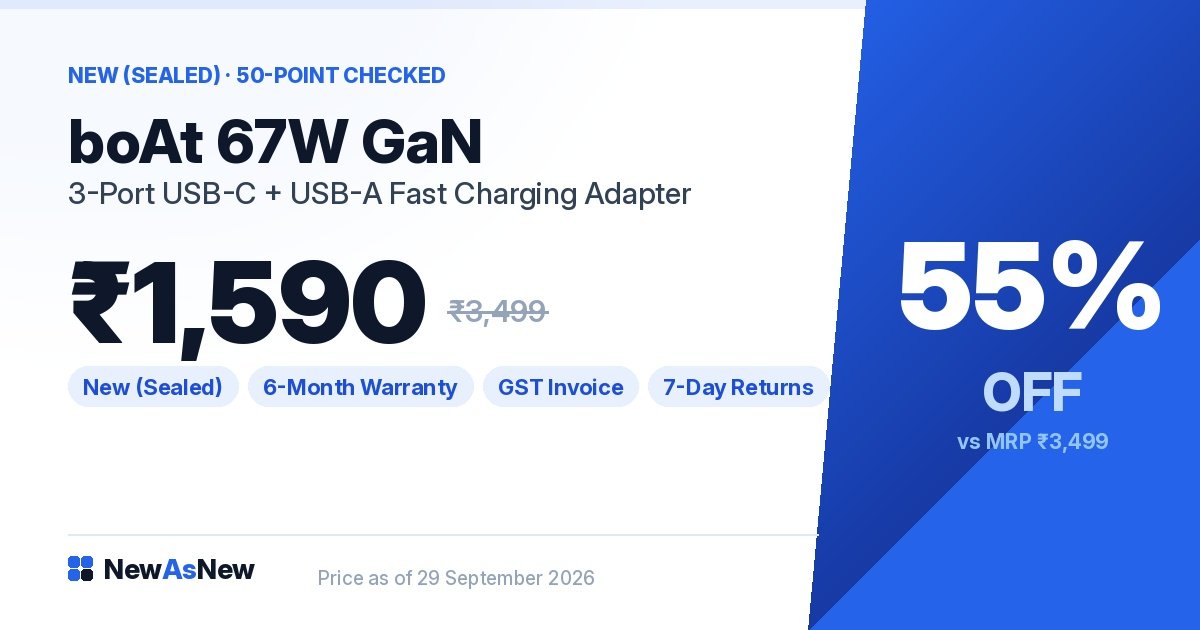
Short answer: Four habits do most of the work — keep the charge roughly between 20% and 80%, keep the vents clear and the laptop off soft surfaces, keep a healthy amount of the SSD free, and audit what launches at startup twice a year. A good charger helps too: the boAt 67W GaN laptop charger is ₹1,590 at NewAsNew, 55% off its ₹3,499 MRP. Measure before you spend — the laptop will tell you what is actually wrong.
Prices are live as of 29 September 2026 and move with stock — check the linked product page for today’s exact price.
What “Excellent” battery health means here: above 80% of original design capacity on a laptop, and above 85% on a smartphone. The thresholds differ because the two age differently — a laptop spends most of its life on mains power, a phone is cycled every day. Anything below that is not listed; there is no lower battery tier. The measured figure for your exact unit is printed on its product page.
Most laptops are replaced long before they stop working. They get slow, the battery gets short, something runs hot, and the owner decides the machine is finished. Usually it is not — usually three or four specific things went wrong, each fixable, and nobody diagnosed them. We will not tell you how many extra years good care buys, because nobody can honestly quantify that. Here is what actually degrades, in order of how much it matters.
Measure first, spend later
Before you buy anything or visit a shop, spend ten minutes finding out what is genuinely wrong. Two free checks answer most questions.
The battery. Open Command Prompt, type powercfg /batteryreport and press Enter. Windows saves an HTML file and tells you where. Open it, find the Installed batteries section, and compare DESIGN CAPACITY with FULL CHARGE CAPACITY. Full charge divided by design capacity is your real battery health. Well below 80% and your “laptop is dying” problem is a battery problem — a replaceable part on most business laptops. Full walkthrough: how to check laptop battery health in 60 seconds.
The SSD. Install the free tool CrystalDiskInfo. It reads the drive’s SMART data and reports Health Status, Power On Hours and the total data written over the drive’s life. Compare that total against the drive’s rated TBW — terabytes written — endurance figure. “Good”, with writes well inside the rating, means years left; “Caution” means back up now. Guessing costs more than measuring.
1. Battery care — the most impactful habit
Battery degradation is the most common reason people believe their laptop is “slowing down”. It is not slowing down; it is lasting shorter, and that feels like decline.
- Keep the charge roughly between 20% and 80%. Repeatedly charging to 100% and draining to near zero ages a lithium-ion cell faster than staying in the middle band. Most Dell, HP and Lenovo business laptops have a battery care or charge-limit setting in the manufacturer’s utility or BIOS — turn it on, and use it instead of sitting plugged in at 100% all day.
- Avoid heat. Heat is the real enemy of a lithium cell, more than cycles are. A laptop left in a parked car in an Indian summer, or on a windowsill in direct sun, is being damaged.
- Use a good charger. A cheap, badly regulated adapter delivers unstable power. A proper GaN charger with correct USB-C Power Delivery negotiation is kinder to the battery and the board.
For what a given percentage feels like in daily use, read laptop battery health explained: what 80% actually means day to day.
2. Thermal management — the cause of most “it got slow” complaints
When a laptop gets too hot, the processor deliberately reduces its own speed to protect itself. That is thermal throttling, and it is behind almost every “my laptop became slow after two years” story. The chip did not wear out — it is running slower because it cannot shed heat.
- Clean the vents every six to twelve months. Compressed air, short bursts, and do not spin the fan blades with the airflow. In dusty Indian cities do it more often than you think you need to. This is the highest-value ten minutes of maintenance there is.
- Use it on hard, flat surfaces. Beds, sofas and cushions block the intake vents underneath and trap the exhaust. Working on a bed? Put a board or stand under the laptop.
- Consider a thermal paste replacement on an older machine with fans. Paste dries out over years and temperatures climb as it does. A competent repair shop can redo it. We are not quoting a price — charges vary widely by city and shop, so ask two local shops and compare.
3. Storage and software
An SSD that is nearly full has less room to manage writes efficiently, and the machine feels slower as a result. This is one reason an “old” laptop seems tired — it is not old, it is full.
- Keep a healthy amount of the drive free. A commonly used rule of thumb is around 15% unused — a sensible target, not a hard law. Use Windows Storage Sense or Disk Cleanup; on a Mac, System Settings → General → Storage.
- Move photos, video and finished projects to an external drive or the cloud. These grow forever and are easiest to relocate.
- Audit startup programs twice a year. Apps add themselves quietly, and each costs boot time and memory forever after. Windows: Task Manager → Startup apps. Mac: System Settings → General → Login Items. Be ruthless.
- Restart weekly. Weeks in sleep let memory leaks accumulate. A restart clears them in thirty seconds.
- Do not install “PC cleaner” or “speed booster” software. The built-in tools do the same job without adding a background process or selling your data.
4. Physical care
- Use a sleeve. A bare laptop in a backpack with keys and a water bottle is a cracked screen waiting to happen.
- Clean the keyboard with compressed air, and the screen with a dry or slightly damp microfibre cloth — never household chemical cleaners, which strip coatings.
- Do not eat or drink over the keyboard. Everybody does; everybody knows how it ends.
- Lift the laptop by its base, not the screen. Hinges and display cables fail from exactly that habit.
Diagnose by symptom
The cadence, in one line: restart weekly, check free space monthly, clean the vents and audit startup programs every six to twelve months, run the battery and SSD checks every six months, and back up continuously — backup being the only failure you cannot repair. Then use this table when something specific goes wrong.
| What you notice | Most likely cause | What to do |
|---|---|---|
| Battery lasts an hour when it used to last five | Battery wear | Run the battery report; replace if health is well below 80% |
| Fast at first, sluggish after twenty minutes of work | Thermal throttling | Clean the vents, use a hard surface, consider thermal paste |
| Slow all the time, from boot onwards | A mechanical hard drive, or a nearly full SSD | Check the drive type and free space |
| Stutters when switching between apps or tabs | Out of RAM | Check Task Manager → Performance → Memory; add RAM if the model allows |
| Random freezes, files that will not open | A failing drive | Back up immediately, then check SMART health |
| Trackpad raised, base will not lie flat | A swollen battery | Stop charging it and get it replaced — safety issue |
Upgrades and accessories that genuinely help
Two upgrades change how a laptop feels more than anything else: swapping a mechanical hard drive for an SSD, and adding RAM on a machine short of it. Both are possible on most ex-corporate Dell Latitude and HP EliteBook models, which are designed to be opened and serviced — see why ex-corporate laptops are built better and what a business-series laptop actually is. We are not printing a price for either, because RAM and SSD prices moved sharply through 2026 and anything we published would be stale within weeks. Get a current local quote, and read upgrade RAM and SSD yourself, or buy a higher-spec refurbished laptop? first.
Three things in stock today that genuinely help an older machine:
- boAt 67W GaN laptop charger (3-port USB-C + USB-A) — ₹1,590, 55% off MRP ₹3,499. A clean, properly regulated replacement for a frayed original adapter.
- boAt 100W GaN laptop charger (4-port) — ₹2,790, 72% off MRP ₹9,999. For higher-draw machines, or a laptop and phone from one socket.
- boAt EnergyShroom PB665 Turbo X 30000mAh laptop power bank (65W) — ₹3,290, 67% off MRP ₹9,999. If your battery is worn and you are not ready to replace it, this is the cheapest way to get your mobility back.
That last one deserves emphasis. A worn internal battery does not have to mean a new laptop. For many people a power bank solves the actual problem — being away from a socket — for a fraction of the cost of replacing the machine.
When to stop spending on it
This guide would be dishonest if it implied every laptop is worth saving.
- If it is a 6th or 7th Generation Intel machine, its runway is short — and that is not about care. Windows 11 requires an 8th Generation Intel processor or newer, so those machines are not eligible however well you look after them, and Windows 10 support ends on 13 October 2026. No amount of vent cleaning fixes a software support cliff. See our Windows 11 eligibility guide.
- If the repair quote approaches a good pre-owned replacement, stop. A motherboard or screen assembly on an older machine often does.
- If the hinges are cracked or the chassis is flexing, be realistic. Structural damage brings cable and display failures with it.
- If it cannot do the work you now need, care is the wrong tool. That is a capability gap, not a maintenance problem.
- If the battery is swollen, stop immediately. Do not charge it. It needs professional replacement.
And when a laptop has genuinely reached the end, the greenest and cheapest replacement is usually not a new one — it is one that already exists. We cover that reasoning in refurbished electronics and the environment.
If it really is time to replace it

The sensible replacement for a well-maintained old business laptop is usually another business laptop — same serviceability, same build, a newer processor generation. The Dell Latitude 7490 (Core i5, 8th Gen) — Grade A Certified is ₹22,490, 75% off MRP ₹88,999, and being 8th Gen it is Windows 11 eligible. Written warranty, GST invoice, 7-day returns and EMI. For a broader look, start with best refurbished laptops under ₹25,000, or SSD vs HDD: why it matters more than the processor if the drive was the real problem all along.
Frequently asked questions
How long can a laptop last with proper maintenance?
Longer than most people keep one, but we will not give you a number, because an honest answer depends on the machine, the climate and the workload. What decides it in practice is rarely the processor. It is the battery, the cooling system, the drive and — increasingly — whether the machine is still eligible for a supported version of Windows.
What battery charge level is best for laptop battery life?
Keeping the charge roughly between 20% and 80% for routine use is gentler on a lithium-ion cell than repeatedly charging to 100% and draining to near zero. Most Dell, HP and Lenovo business laptops include a battery care or charge-limit setting in the manufacturer’s utility or BIOS that does this automatically. Heat matters at least as much — avoid hot cars and direct sunlight.
How often should I clean my laptop’s vents?
Every six to twelve months as a baseline, and more often in dusty conditions, which covers most Indian cities. Use compressed air in short bursts and avoid spinning the fan blades with the airflow. Blocked vents cause thermal throttling, where the processor deliberately slows itself to shed heat — and that is behind most complaints of a laptop becoming slow.
How do I tell whether my battery or my SSD is the problem?
Check both, free, in ten minutes. For the battery, run powercfg /batteryreport in Command Prompt and divide FULL CHARGE CAPACITY by DESIGN CAPACITY. For the drive, install CrystalDiskInfo and read its Health Status, Power On Hours and total data written, comparing that total against the drive’s rated TBW endurance figure. A “Caution” reading means back up now.
What upgrades actually extend a laptop’s useful life?
Two make a real difference: replacing a mechanical hard drive with an SSD, and adding RAM on a machine short of it. Both are usually possible on ex-corporate Dell Latitude and HP EliteBook models, which are designed to be serviced. We are not quoting prices because RAM and SSD prices moved sharply through 2026 — get a current local quote and weigh it against a higher-spec pre-owned machine.
When should I stop repairing and just replace the laptop?
When a repair quote approaches the price of a good pre-owned replacement with a warranty; when the chassis or hinges are structurally damaged; when the machine simply cannot do the work you now need; or when it is a 6th or 7th Generation Intel machine, since those are not eligible for Windows 11 and Windows 10 support ends on 13 October 2026. If the battery is swollen, stop using it immediately regardless.
Browse and ask
Want a second opinion before you spend on a repair? Message us on WhatsApp with the model, its battery report figures and its CrystalDiskInfo reading. We will tell you honestly whether it is worth fixing — including when the answer is “keep it, do not buy anything from us yet”.
Written by A Pandey, founder of NewAsNew (NextG Serve Pvt. Ltd., New Delhi). We inspect and restore ex-corporate laptops for a living, so we see exactly which components fail and which ones people replace unnecessarily. Not every product deserves to be sold, and not every laptop deserves to be replaced. Read why we started NewAsNew.